|
This
could be the single biggest hurdle in realistic cg since Gouraud
shading... :)
...as for me, I've been wrestling with this since
-95. Like many others, I've been extremely frustrated by it,
mainly cause until about -00 very few knew much about it, and no one could
answer my questions. So -99 I found my own home-made method, a
pragmatic approach that sidesteps simulation. (When we have the
software and the power to do nice simulating, of course we should, but
until then this kind of 'kludgy' approach might serve ok.)
My
terminology is astronomy-based, because it's clearer and more concise:
Dayside = where light hits
Nightside = where light doesn't reach
Terminator = the transitional zone between night and day
Disclaimer: I mention Maya a few times, because that's what I use,
but very similar effects can be achieved in any other high-end 3d
software.
Pardon the crappy geometry, but I had to rapidly make big
changes to the original face due to unforeseen copyright issues -
sorry.
Faking
Translucency
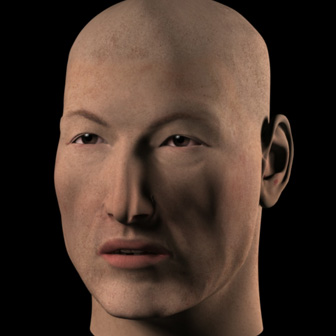 Starting from the beginning - as we all know, if you use a plain
Lambert and put a skin-colored texture in the color channel, you end up
with something like this: the "Copper Zombie". We see it in
many beginner's work, and still today in game graphics, since they often
use quite simple shading. Starting from the beginning - as we all know, if you use a plain
Lambert and put a skin-colored texture in the color channel, you end up
with something like this: the "Copper Zombie". We see it in
many beginner's work, and still today in game graphics, since they often
use quite simple shading.
The skin is a horrible dead
greenish-gray in the shadows, and a metallic orange in the highlights - a
bit like a corpse touched up with copper-tinted makeup.
So we
need to make the nightside warmer, and the dayside cooler. Also,
from observing real skin, we can see that the terminator needs to be even
warmer than the nightside. (Warmer in this case means more
orange/red, and cooler means more blue.)
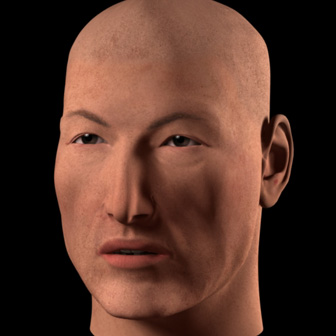 My
first efforts used the ambient or incandescency channels to create some
Global Warming - making the whole head redder. I sometimes
even tried making the color channel and spec channels bluish. But
this is of limited usefulness - when you get the terminator as warm as it
must be, the nightside is too red, and the dayside too bright. My
first efforts used the ambient or incandescency channels to create some
Global Warming - making the whole head redder. I sometimes
even tried making the color channel and spec channels bluish. But
this is of limited usefulness - when you get the terminator as warm as it
must be, the nightside is too red, and the dayside too bright.
So leave
the ambient like this, maximum saturation but a fairly low value.
It's ok, better than the corpse, but still not very
realistic.
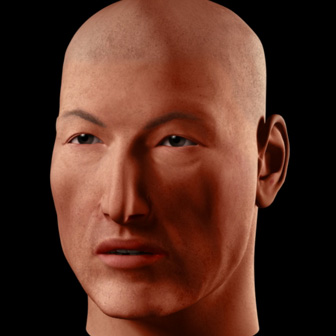 Here's where it gets fun. Take a cartoon-shader - doesn't
matter which one, as long as it can give you simple control over which
color ends up where, and you can get rid of the sharp edges between the
colors. (We're not going to use any outline function, just the
flat-shading function... except not flat.) Here's where it gets fun. Take a cartoon-shader - doesn't
matter which one, as long as it can give you simple control over which
color ends up where, and you can get rid of the sharp edges between the
colors. (We're not going to use any outline function, just the
flat-shading function... except not flat.)
The shader I
use here takes its color info from a ramp (in Maya, just switch the
interpolation to 'linear' or 'smooth' instead of 'none'). The
original cartoon shader I use came from Tom Kluysken's 'Maya Queen' site,
and has been attributed to Duncan Brinsmead and Michelle Borghi - it's
still here
(in Tutorials).
Here's
the network in Maya for the translucency-fake (cartoon-shader):
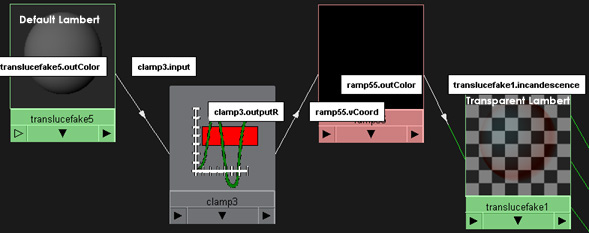
.
The
ramp hooks into the incandescent channel of a transparent Lambert.
Now layer that on top of your first skin-colored Lambert.
(Layering shaders in Maya is very simple - one shader is just
'stacked' on top of another.)
Now
tweak the colors of the ramp, to be bluish on the dayside, reddish on the
terminator, and reddish or black on the nightside.
In
Maya you can go below zero on the Value. Making the Hue blue and the
Value any sort of minus, will 'suck' blue out of that part, and in effect
create a very dark and strong orange - this is what I did here, in the
terminator. The only problem is, when you need to go back to edit it
later the color-editor will not display the correct HSV anymore, so you'll
either have to remember, guess or write it down somewhere...
Note - you can just as well put that
cartoon-shader based 'translucency fake' in the incandescency channel of
the base Lambert shader - it doesn't have to be layered... I just do it to
have a bit of 'modularity' - I can use the same layer in many other
layered shaders, and when I tweak one of them they all get tweaked.
Here's how to add another level of subtlety to the shader: do what
I mentioned above, put the translucency fake not in a layer but in the
base Lambert itself. Then copy that Lambert and layer that on top -
Maya-note: move the translucency fake out of the incandescence to the
ambient channel - this ensures none of the effect is seen in the
transparent areas (but you'll have to increase the intensity of it).
(Sorry, I'm not sure if there's a way to achieve this in any other
software.)
Then tweak this second cartoon-shader-ramp so it seems right
for a 'bonier' part of the head, like the skull/forehead (like decrease
the width and redness of the terminator).
Then simply make this second
Lambert transparent over the 'fleshier' bits, using a low-res and blurry
grayscale texture map.
Highlights
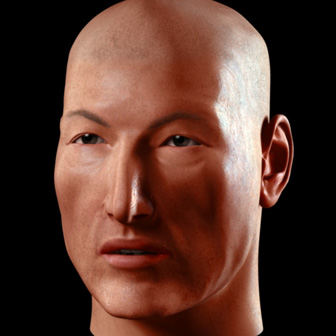
The
highlights are a whole other hornet's nest of problems. For this
reason I like to isolate them on another layer, in fact here I use 2
layers: one for the glancing highlights (like the one on the right),
and one for head-on or 'flat' highlights (on the left side). They
gradually cross-fade into each other as the light revolves around the
model.
Both
shaders here are transparent PhongE, but they could also be Blinn, it
doesn't matter that much. The important thing is to map whatever
parameters the shader has for the highlight so that it changes with
regards to the angle of the light that hits the surface. In Maya you
can use ramps to control this change. The basis for this shader was
Emmanuel Campin's Backlight Shader (pixho.com)
Lets
look at the most important of the two, the glancing highlight.
It must become brighter and bluer and wider as the light becomes more and
more glancing, finally flaring out into a long thin line in opposing
light. Since I have another layer to handle the flatter angles, I
make this glancing layer fade out to complete darkness before it hits
'noon'.
(In fact
both layers are always slightly bluish - any specularity on skin must be
somewhat blue to counteract the default tendency towards yellow.
This can be applied to other organic materials as well, like for instance
greenery - in this case the highlight would be red/magenta.)
Any
bumpmap should be placed first on these specular layers, and should always
be of higher value than one you may put on the base-layer. This
increases the illusion of translucency.
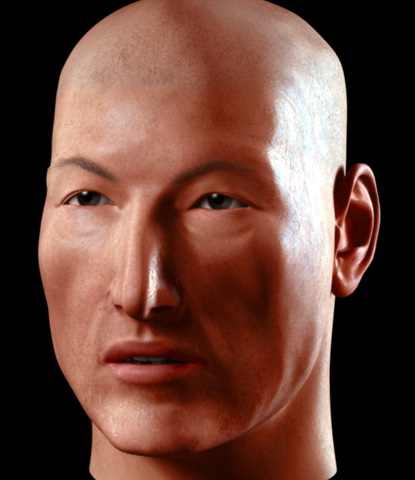
And
that's it - a higher res (just tweaked with Auto-Levels in
Photoshop).
The lighting: 8 spotlights - 2 fairly tight clusters
of 4 each - and a very weak ambient light below and to the
back.
The ear could certainly do with a lot more incandescent red
in some selected spots, especially in this particular lighting (faking
translucency) - hard work but if the image or scene is important it might
be worth going the extra mile to add it.
Of course you could just use
MentalRay, FinalRender, VRay, PRMan or Brazil, none of which I
have... :)
|